

This guide provides you with detailed steps for reviewing and scoring outputs each week. All scoring and feedback must be submitted through Canvas by 8pm ET Thursday following the Sunday deadline for ILs.



Review Process At-a-Glance
- Review Grading Guide
- Review & Grade Outputs
- Update Weekly Evals & Send Weekly Cohort Summary
Step 1: Review Grading Guide

Begin by reviewing your curriculum’s grading guide to familiarize yourself with the assigned outputs, assigned graders, guidance for how to review outputs, and gain access to answer keys. Your grading guide should be kept side-by-side next to the Canvas platform.
Open this toggle to see an explanation of the fields included in the Grading Guide!
Title- The name of the assignment in Canvas.
Week- When the assignment was included in Canvas.
Canvas Assign To- Outputs will be assigned and differentiated by role and familiarity with curriculum. You are only responsible for reviewing the outputs of the roles present in your cohort. They may be assigned by:- Experience w/ Curriculum
- New Curriculum ILs: All new IAs, new instructors, and any returners who have never taught the curriculum as an instructor or IA in the past.
- Same Curriculum ILs: Any returning ILs that have taught the curriculum as an instructor or IA
- Role
- New IA
- New Instructor
- Returning Instructor
- Returning IA
Submission Type- The type of output you can expect to review.- Text Entry (HireFlix): Review the video using the HireFlix link in Airtable and read the IL’s reflection in Canvas.
- Text Entry: Review the written output directly in Canvas.
- Website URL: Review the IL’s code or work by following the link they submitted in Canvas.
- Media Recordings: Review the IL’s video directly in Canvas.
- File Uploads: Review the file uploaded by the IL in Canvas.
- Discussion: Review the IL’s contribution to the discussion using SpeedGrader in Canvas.
Grader- The reviewer is the person responsible for reviewing the output. In most instances, this will be you, Senior Instructors, but at some times may be assigned to the KWK team.
Answer Key- An exemplar or answer key to guide your evaluation of the IL’s output.
How to Review- A step-by-step suggestion of how to review the output.
Step 2: Review & Grade Outputs
Once you’ve reviewed the grading guide and have a sense of what you’re grading, its time to review and grade outputs in Canvas! Refer to the directions below to see how to navigate Canvas.
1. Find the associated output on Canvas
- Read through the task to understand what ILs are asked to do
- Refer back to the output’s associated lesson if needed to understand the content the ILs have learned
2. Access Submission on SpeedGrader
- Click on the three dots button next to the assignment
- Click
SpeedGraderto open up the grading interface
- Click on the dropdown list of student names
- Click
Sectionsand select your training cohort to filter for only your ILs
- Access the instructional leader’s submission by clicking on the link in the left side of the Speedgrader interface.
- The submission may be displayed or embedded into Speedgrader OR
- The submission may display an external URL that you need to access (i.e. the link to their Code Sandbox submission


Accessing Real-Time Response Assessments on Hireflix
The “real-time responses assessment” is a new type of output for ILs in 2026. This assessment simulates the real camp environment where scholars ask you questions in the moment and you need to respond immediately. We’re using one-way video interview platform called HireFlix for this. The video submissions can only be viewed on Hireflix, so you will need to access the submissions in the HireFlix platform. Detailed instructions will be provided before you score your first Real-Time Response Assessment.
3. Review Submission - Grade & Share Feedback
- Review the submission as directed in the
How To Reviewcolumn of the Grading Guides.
- Use the rubric attached to the assignment to score their submission and share overall feedback with them in Canvas and/or in their code.
- Click on
View Rubric - Click on each criteria of the rubric to score it appropriately
- Feel free to add comments directly into each criteria of the rubric to explain your score
- Click
Saveto save your rubric scores - Leave 1-3 sentences with high-level feedback in the Assignment Comments panel
- Hit
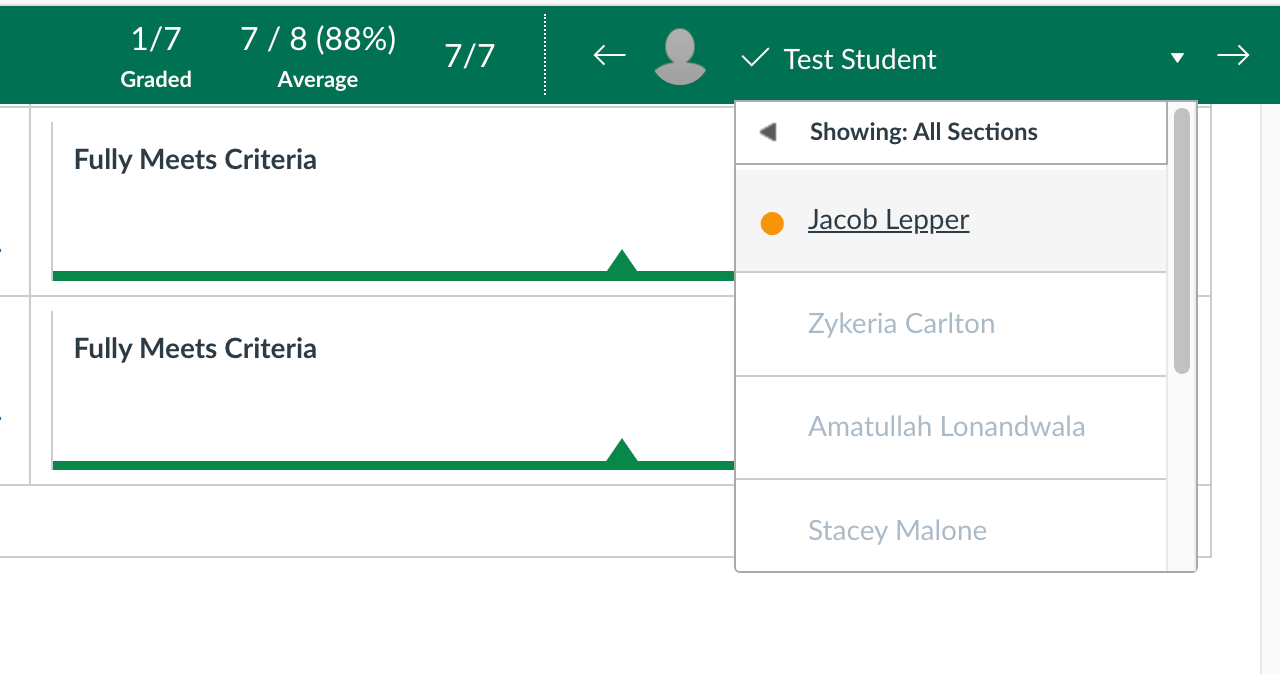
Submitto finalize your evaluation and share your comments and scores with the instructional leader - Continue reviewing all of your cohort’s submissions by selecting the next person in the list of “students”
- You’ll know that the submission needs to be graded because it will have an orange dot next to the instructional leader’s name
- The green check means you have successfully reviewed their output


WTD when reviewing incomplete, incorrect, or inaccessible submissions:
“What should I do if an IL submits something incorrect, incomplete or is inaccessible?”
Please reassign it to them on Canvas! Doing this will send them an email notification prompting them to submit the assignment again, while still keeping their original submission.
- Write a comment in Assignment Comments explaining why you can’t review their submission.
- Hit
Submit.
- Click the
Reassign Assignmentbutton - While they will get an email notification, it’s a good idea to also ping them via Slack to let them know it needs to be resubmitted.
- Wait for their new response to come in, then review it again!

Step 3: Update Weekly Evals & Send Weekly Cohort Summary
After scoring all outputs each week, take a bird’s eye view of the overall scores and submission status of all the ILs in your cohort. This will help you assess the overall performance and progress of all ILs and determine if anyone needs additional support or check-ins.
Each Thursday by 8pm ET, we ask that you update your Airtable Cohort Roster with Weekly Eval scores and send a weekly cohort summary to your KWK Leads (Awa & Kaitlyn) in Slack. These steps help the KWK team stay informed on how each cohort is progressing and flag any concerns early.
Each Thursday by 8pm ET, we ask that you update your Airtable Cohort Roster with Weekly Eval scores and send a weekly cohort summary to your KWK Leads (Awa & Kaitlyn) in Slack. These steps help the KWK team stay informed on how each cohort is progressing and flag any concerns early.
Review the Gradebook
Here’s how to review the gradebook to see how well each IL is doing in the course.
Update Weekly Eval Score
Each week, update the
Week X Evaluation field in your Airtable Cohort Roster for each IL in your training cohort. Use your best judgment when assigning these ratings. We know they represent only a snapshot in time and these won’t always be perfectly cut-and-dry!🟢 Exemplary
- Completes all assignments on time
- Communicates effectively when needed
- Submits high-quality work with strong technical proficiency
🟡 Satisfactory
- Completes most assignments on time or within 1-3 days after the deadline
- Communicates when tasks may be late
- Submits solid work with good technical proficiency
🔴 Needs Improvement
- Most assignments are submitted late
- Communication is inconsistent or lacking
- Work shows lower technical proficiency
Notes: If you mark someone with the Needs Improvement rating, please add detailed notes in the
Senior Instructor Notes field.Weekly Cohort Summary
Use the information from your Weekly Evals to draft your Weekly Cohort Summary message. This message should include the following key pieces of information:
- Bright Spots: Name 2-3 things that are going well in your training cohort this week (e.g. interesting submissions, IL engagement, community building, technical proficiency)
- ILs Monitoring: List any ILs that you’re monitoring due to late submissions, lack of communication, or technical challenges. Please share:
- IL Name
- Challenge
- Last Action Taken
- Anticipated Next Steps
- KWK Support: Share any support that could be beneficial from KWK (e.g. technical support, decision-making support, communicating directly with ILs)
Weekly Cohort Summary Example
Hello Kait and Awa! Here’s my weekly cohort summary for week 2:
Bright Spots: this week, 90% of ILs submitted on time! I was really pushing for additional on-time submissions so was really glad to see this! I also saw 3 IAs really push themselves with their project submissions by remixing and refactoring their work from previous years.
ILs Monitoring: This week, I’m keeping a closer eye on Sarah and Joy. This is the second week that they have not submitted their outputs.
- Sarah was not responsive to me on Slack this past week. Last week, she turned in Output 1 late and then I couldn’t access her submission. I reassigned it to her, but still haven’t gotten a new submission. I plan to ping her again today with a more clear deadline for resubmitting that assignment.
- Joy has been in regular contact with me on Slack and shared that she has finals, so will be late on submissions. She has reached out to ask technical questions about a few things, so I know she’s making progress. I plan to check back in with her tomorrow to see where she’s at.
KWK Support: Nothing for now, but I might want some support reaching out to Sarah via text if she doesn’t reply on Slack!
Bright Spots: this week, 90% of ILs submitted on time! I was really pushing for additional on-time submissions so was really glad to see this! I also saw 3 IAs really push themselves with their project submissions by remixing and refactoring their work from previous years.
ILs Monitoring: This week, I’m keeping a closer eye on Sarah and Joy. This is the second week that they have not submitted their outputs.
- Sarah was not responsive to me on Slack this past week. Last week, she turned in Output 1 late and then I couldn’t access her submission. I reassigned it to her, but still haven’t gotten a new submission. I plan to ping her again today with a more clear deadline for resubmitting that assignment.
- Joy has been in regular contact with me on Slack and shared that she has finals, so will be late on submissions. She has reached out to ask technical questions about a few things, so I know she’s making progress. I plan to check back in with her tomorrow to see where she’s at.
KWK Support: Nothing for now, but I might want some support reaching out to Sarah via text if she doesn’t reply on Slack!
 Made with Bullet